|
||||||
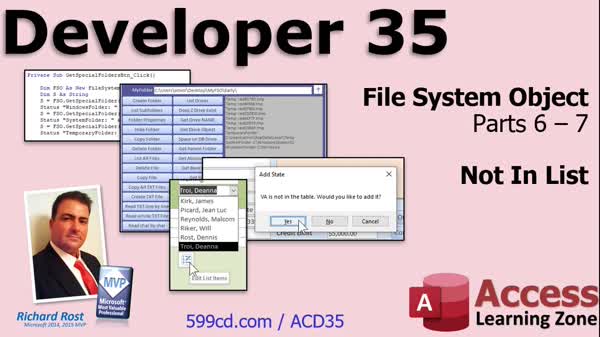
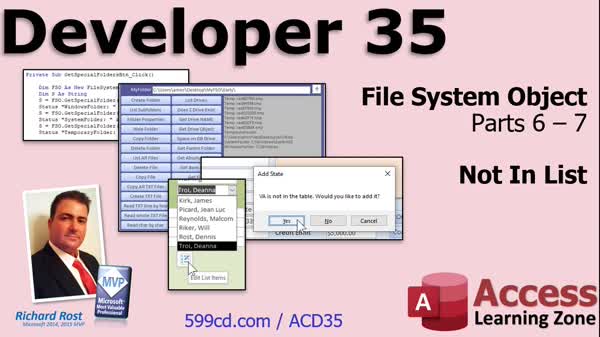
Access Developer 35File System Object, Drives, Folders, Not In ListWelcome to Access Developer 35. In this course you will learn how to use the File System Object to list and check drive properties, verify if drives exist, and compare GetDrive versus GetDriveName. We will also discuss how to check free space, navigate folders, work with special Windows folders, and generate temporary file names. Finally, you will see how to handle the Not In List event in combo and list boxes, including allowing users to add missing items and using the ListItemsEditForm. Lessons
Database FilesResources
Lesson SummaryWelcome! File System Object: Drives & Folders - Welcome to Microsoft Access Developer Level 35. In this course we will continue our work with the File System Object, covering how to list and check drive properties, verify if drives exist, understand GetDrive versus GetDriveName, and check free space. We will also discuss folder navigation, getting parent folders, generating temporary file names, and accessing special Windows folders. Finally, we will talk about the Not In List event, how to let users add items to combo and list boxes that are not already present, and discuss using the ListItemsEditForm for this purpose.
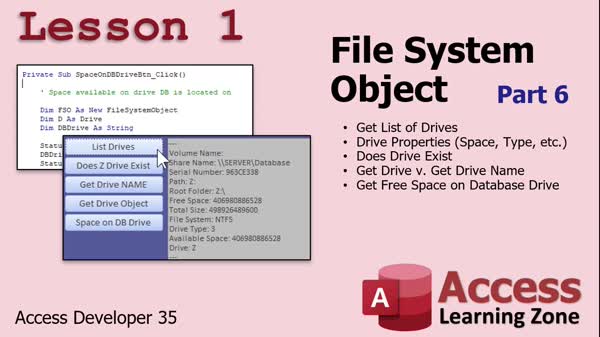
Lesson 1: Drive Properties & Space Check - In Lesson 1, we continue exploring the File System Object by getting a list of drives and reviewing their properties, such as total space, free space, serial number, drive type, file system, and volume name. We will walk through checking if a drive exists, explain the difference between GetDrive and GetDriveName, and cover how to check the free space on the drive where your database is stored. We will discuss scenarios where you might need to handle network drives or display warnings for low free space, and see practical examples of using these features in your database applications.
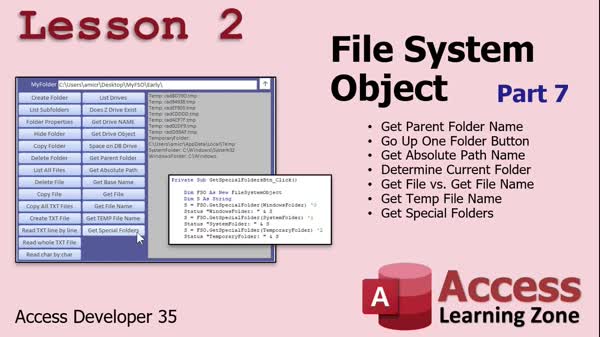
Lesson 2: File System Paths & Folders - In Lesson 2, we continue and conclude working with the File System Object, Part 7. We will see how to get the parent folder name and create an up-one-folder button that stops at the root, get the absolute path and determine the current folder, discuss the difference between get file and get file name, and look at how to generate temporary file names. I will also show how to retrieve special Windows folders like the system and temp folders, and discuss saving Access objects as text for version control. Finally, I will demonstrate a template database for comparing files and folders.
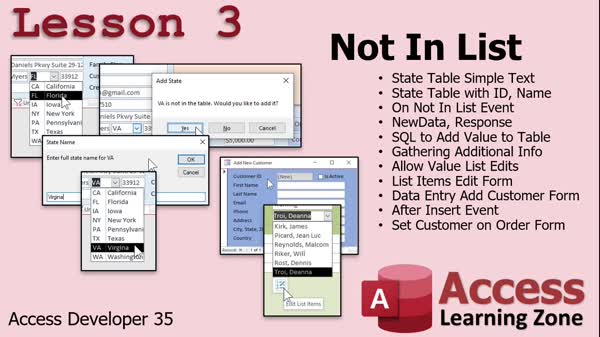
Lesson 3: Combo Box: Not In List & Editing - In Lesson 3, we will explore the Not In List event in Microsoft Access, which is triggered when a user tries to add an item to a combo box or list box that is not already present. We will discuss the different ways to handle this, including using the Not In List event to add items programmatically and setting up a List Items Edit Form. I will walk you through practical examples such as building a state selection combo box, configuring table structures, updating related fields with queries, and prompting users to add missing items using VBA or forms.
Lesson 4: What's Next & Finding Lessons - In this lesson, we will talk about what's next after Access Developer 35, discuss plans for Developer 36, and review ways you can suggest future topics through the forums or course survey. We will discuss how to search for previously covered material using the website's search options, and I will mention the TechHelp video series, which covers a variety of additional topics, especially for beginners. You will also hear about how TechHelp complements these developer lessons and ways to access more content as it becomes available.
NavigationKeywordsFile System Object, drive properties, drive free space, GetDrive, GetDriveName, folder navigation, parent folder, special folders, temp folder, generate temporary file name, Not In List event, combo box add item, ListItemsEditForm, file comparison
More InformationTranscriptToday's lesson is going to continue our look at the file system object, Parts 6 and 7. Well, it is not completely over. There are going to be little bits and pieces that I will be adding in future lessons. But yes, most of it is covered today. We will be talking about the on-not-in-list event, how to add items to a list box or a combo box when it is not in the list. What do you do about that? This class follows Access Developer 34. I strongly recommend that you have taken 30 through 34. Those are all the file I.O. classes if you want to continue with the file I.O. Of course, I recommend you do not skip levels at all. You should have taken all the previous Developer, Advanced, Expert, and Beginner lessons. For more information on why, read that page. I will be using Microsoft Access 365. It is currently 2022, so this is roughly equivalent to Access 2019. If you have questions, just scroll to the bottom of the page that you are watching this video on and post them right there. If you have questions that do not pertain to this specific class, you can post them in the Access forum. Now let's take a look at what exactly is covered in today's class. In lesson one, we are continuing with the file system object. This is Part 6. We will begin by getting a list of drives and then go through all the drive properties, the total space, the space free, the serial number of the drive, and lots more. Then we will check to see if a drive exists. That is handy to check to see if perhaps the network drive that the database is on is actually connected or not. Then we will learn the difference between get drive and get drive name and why it is important. We will see how to check the free space on the database drive, so you can say, for example, my database drive is drive Z, how much space is free on it. If it is getting low, maybe give a warning message. That kind of stuff is all covered in lesson one. In lesson two, we are continuing and concluding with the file system object, Part 7. We will see how to get the parent folder name of the folder that you are in, how to go up one folder, make an up one folder button, and stop at the root. We will get the absolute path name and determine the current folder that we are in. We will learn about get file versus get file name, just like get drive versus get drive name. We will see how to generate temporary file names. Then we will learn how to get the special folders, the Windows system, temp folders, those kinds of things. All that is coming up in lesson two. In lesson three, we are going to learn about the not-in-list event, what to do when your user wants to add something to a combo box or a list box that is not in the list. There are a couple of different things you can do. You can either use the not-in-list event and add it programmatically, or you can set up something called a list items edit form, which we looked at in Access Beginner 8. We are going to talk a lot more about it today. IntroIn lesson 35 of my Microsoft Access Developer series, we will continue exploring the file system object by covering Parts 6 and 7, including how to list drives, check drive properties like total and free space, verify if a network drive is connected, get parent folder names, and generate temporary file names. We will also discuss the difference between functions like get drive vs get drive name and get file vs get file name. Finally, you will learn how to handle the not-in-list event for combo and list boxes when users need to add new items. QuizQ1. What is the main focus of today's lesson? A. Introduction to database tables B. Advanced SQL queries C. Continuing work with the file system object D. Setting up reports in Access Q2. In Part 6, what is one of the drive properties discussed? A. Database user permissions B. Total space and free space on a drive C. Macro automation D. Split database functionality Q3. Why is it important to check if a drive exists in Access file I.O. tasks? A. To create a drive backup B. To format the network drive automatically C. To ensure the database can connect to its storage location D. To display Windows wallpapers Q4. What is the purpose of comparing "get drive" and "get drive name" methods? A. To determine the operating system version B. To identify the current Windows user C. To understand the difference in retrieving a drive object vs. just its name D. To check the compatibility with older versions of Access Q5. What feature is highlighted in Part 7 regarding folders? A. Synchronizing folders across multiple PCs B. Getting the parent folder name and navigating up one directory C. Encrypting folder contents D. Creating shortcuts to folders Q6. How can you handle a user wanting to add an item to a combo box that isn't in the list? A. Ignore the request B. Only allow manual table edits C. Use the not-in-list event or a list items edit form D. Rebuild the database Q7. What is the function of getting special folders, such as TEMP, discussed in the lesson? A. To change user desktop backgrounds B. To send emails automatically C. To obtain system-specific directories for storing or retrieving files D. To lock certain folders from users Q8. The list items edit form was initially covered in which previous lesson? A. Access Beginner 3 B. Access Beginner 8 C. Access Developer 6 D. Access Advanced 2 Q9. Which version of Microsoft Access is primarily used in these lessons? A. Access 2007 B. Access 2013 C. Access 365 (equivalent to Access 2019) D. Access 2010 Q10. What does the lesson recommend if you have questions unrelated to the specific class? A. Wait until the next lesson B. Search online independently C. Post them in the Access forum D. Email the instructor directly Answers: 1-C; 2-B; 3-C; 4-C; 5-B; 6-C; 7-C; 8-B; 9-C; 10-C DISCLAIMER: Quiz questions are AI generated. If you find any that are wrong, don't make sense, or aren't related to the video topic at hand, then please post a comment and let me know. Thanks. SummaryToday's video from Access Learning Zone continues our exploration of the File System Object with Parts 6 and 7. While this series is nearly complete, I plan to sprinkle in a few additional related topics in upcoming lessons. The majority of the significant concepts, however, are addressed in this installment. In this lesson, I will cover the On Not In List event. This event helps manage situations where a user tries to enter a value into a combo box or list box that is not already present. Knowing how to handle these situations is essential for a smooth user experience. Before starting, keep in mind that this material builds directly on concepts covered in Access Developer lessons 30 through 34. Those lessons form a thorough foundation for file input/output in Access. As always, I highly recommend following my entire sequence of Beginner, Expert, Advanced, and Developer courses without skipping any, so you will have all the necessary skills and context. For demonstration purposes, I will be using Microsoft Access 365, which as of 2022 is basically equivalent to Access 2019. If you have any questions about what you see here, I encourage you to scroll down to the bottom of the page and post them. For broader Access-related questions that are not specific to this lesson, feel free to use the Access forum. Now, let me outline what you can expect from today's class: In the first lesson, we pick up with the File System Object, Part 6. Here, I show you how to retrieve a complete list of drives available on your computer, along with detailed drive properties. You will learn how to access information such as total space, available free space, and the serial number for each drive. Additionally, I explain how to check that a drive exists, which is particularly important for network drives. It's helpful, for instance, to verify that a network database drive is still connected before trying to access it. I then clarify the difference between GetDrive and GetDriveName, and explain why it matters in real-world use. There is also a section where we check the amount of free space on the drive that hosts your database, which enables you to issue warnings if storage is running low. In the second lesson, I move on to File System Object, Part 7, and bring this series to a conclusion. This part focuses on folder navigation. You'll see how to determine the parent folder of your current path, how to move up one level in the folder structure, and how to build a button that does this for you but stops at the root. I also demonstrate how to retrieve the absolute path name so you always know exactly where you are in the directory hierarchy. The lesson continues with exploring the distinction between GetFile and GetFileName, which is similar to the earlier discussion about drives. You will also learn how to generate temporary file names for situations where you need to create files on the fly. I'll show you how to access various special folders in Windows, such as the System and Temp folders, and explain why these might be useful when working with files in Access. Finally, in lesson three, I focus on the Not In List event. This is a key concept for dealing with combo boxes or list boxes when users attempt to enter items that do not yet exist in your list. I explain the options available to you: either programmatically add the new item as it is typed, or set up a List Items Edit Form, which gives users a way to add records manually. We first looked at List Items Edit Forms in Access Beginner 8, but today I will demonstrate this feature in much more detail. You can find a complete video tutorial with step-by-step instructions on everything discussed here on my website at the link below. Live long and prosper, my friends. Topic ListGetting a list of drives using the file system object Exploring drive properties: total space, free space, serial number Checking if a drive exists programmatically Understanding get drive versus get drive name Checking free space on the database drive and warning users Getting the parent folder name of the current directory Navigating up one folder and implementing an 'up one folder' button Stopping navigation at the root folder Getting the absolute path name of the current folder Determining the current folder location Understanding get file versus get file name Generating temporary file names Accessing special folders like Windows system and temp folders Handling the not-in-list event for combo boxes and list boxes Adding new items to a combo or list box programmatically Using a list items edit form to manage list entries Primary Topicsfile system object, drive properties, drive existence check, get drive vs get drive name, free space checks, parent folder navigation, get file vs get file name, temporary file generation, special folders, not-in-list event, list items edit form Secondary TopicsAccess 365 vs 2019 compatibility, lesson prerequisites |
||||||||||||||||||||||||||||||||||
|
| |||
| Keywords: File System Object, drive properties, drive free space, GetDrive, GetDriveName, folder navigation, parent folder, special folders, temp folder, generate temporary file name, Not In List event, combo box add item, ListItemsEditForm, file comparison PermaLink How To Use File System Object Drive Properties and Not In List Event Handling in Microsoft Access |